From ChatGPT Sites to Elementor

Turn ChatGPT and HTML sites into Elementor withopy & paste.

Ctrl+C
Ctrl+V
Cmd on Mac

Capture any ChatGPT Site in Chrome. Paste it into Elementor. Keep building—without starting over.

Free to tryOne-time licenseNo code required

your-chatgpt-site.com
+
V
E
Page captured
Ready to edit

One tiny extension. One massive shortcut.

ChatGPT Sites
Chrome
Elementor
Skip the rebuild

Your design already exists. Don't build it twice.

Move from an AI-generated concept to an editable WordPress page in a workflow that feels almost unfairly simple.

Capture in one click

Open the extension on your source page and let CopyPaste prepare it for Elementor.

Paste like anything else

Use the keyboard shortcut you already know. No export maze, no manual reconstruction.

Keep editing visually

Continue refining your page inside Elementor and hand it off in a familiar WordPress workflow.

How it works

From browser tab to Elementor canvas.

Nine short steps. No rebuilding every section by hand.

01
Capture

Grab the page directly from Chrome.

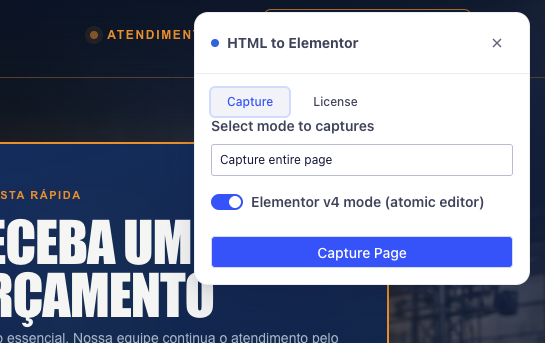
Reload the source site, open CopyPaste and click Capture Page. Choose Elementor v4 mode when working with the Atomic Editor.

02
Paste

Drop it into your Elementor canvas.

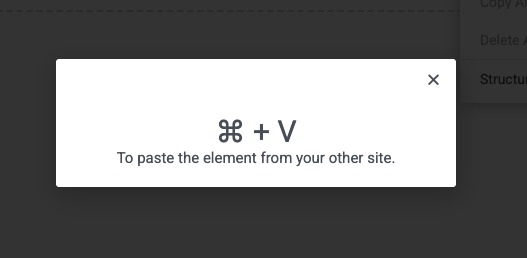
Right-click the editing area, choose Paste from other site, then press Ctrl + V—or Cmd + V on a Mac.

01

Install CopyPaste

Add the extension from the Chrome Web Store. Your first 3 website conversions are free.

02

Reload your source site

Open the ChatGPT Site you want to move and refresh the page after installing the extension.

03

Open the extension

Click the CopyPaste Elementor icon in your Chrome toolbar.

04

Capture the page

Choose your preferred Elementor mode, then click “Capture Page.”

05

Create an Elementor page

Open WordPress, launch Elementor and create a new blank page.

06

Enable custom CSS support

Using Elementor Free? Install Advanced Animation so custom CSS can be added through its custom block.

07

Choose “Paste from other site”

Right-click inside the Elementor canvas and select the paste option.

08

Press your paste shortcut

Use Ctrl + V on Windows or Cmd + V on macOS.

09

Watch the magic happen

Give CopyPaste a moment to rebuild the captured page inside Elementor.

Simple pricing

Try the shortcut. Keep it forever.

Start with 3 free website conversions. When CopyPaste earns its place in your workflow, unlock the full version for one simple price.

Unlimited website conversions
Lifetime CopyPaste Elementor access
Windows and macOS shortcuts
Hours, days, months of work optimized
Full version

One-time purchase

US$
17
.95
BRL
99
.90

Pay once. Unlock the complete extension.
Payment will be charged in Brazilian Real (BRL 99,90) and converterd to USD at the checkout.

No payment required for your first 3 conversions.
FAQ

Questions, meet answers.

Everything you need to know before turning your first ChatGPT Site into an Elementor page.

What exactly does CopyPaste Elementor do?

CopyPaste captures a website in Chrome and turns it into content that can be pasted directly into the Elementor editor. It is especially useful for moving websites created with ChatGPT Sites into WordPress, where you can keep editing them visually.

Can I try it before buying?

Yes. You can install the extension and convert up to 3 websites for free. No paid license is required for the trial.

How much does the full version cost?

The full version costs US$ 19.99. It unlocks CopyPaste after your 3 free website conversions.

Do I need Elementor Pro?

No. CopyPaste can work with Elementor Free. For pages that use custom CSS, we recommend installing the free Advanced Animation plugin, which provides a custom block for adding CSS in the block editor. Elementor Pro users can rely on their existing custom CSS features.

Does it work on Mac and Windows?

Yes. The workflow is the same: use Ctrl + V on Windows and Cmd + V on macOS when Elementor asks you to paste.

Why do I need to reload the site after installing?

Reloading lets Chrome activate the extension on the page you want to capture. It is a quick one-time step for any tab that was already open during installation.

Can I still edit the page after importing it?

Yes—that is the point. Once the page is pasted into Elementor, you can continue adapting its content and design with the Elementor workflow you already know.

Your shortcut starts here

Copy the site. Paste the possibility.

Bring your ChatGPT Sites into Elementor and spend your time refining, not rebuilding.

CopyPaste Elementor
Privacy Overview

This website uses cookies so that we can provide you with the best user experience possible. Cookie information is stored in your browser and performs functions such as recognising you when you return to our website and helping our team to understand which sections of the website you find most interesting and useful.